
Configuring a reference schedule in MS Project: how to proceed
Recently, we introduced you to the advantages of MS Project, Microsoft’s project management software that you can buy at a great price from Licenceking. In this weekly Hacking, we explain how to collect all the data of a project in a reference schedule until a deadline set by you.
Finally, the MS Project reference schedule contains all the data of the validated project that must be completed by a certain date. In particular, you can set resource allocation, costs, job descriptions, investments, duration and deadlines. With the MS Project reference schedule, you see whether the estimated values that have been agreed, for example, are in line with the projected costs or the deadlines set with the project’s present values. If these data differ, you can see what impact this may have on overall planning or costs.
Save up to six schedules
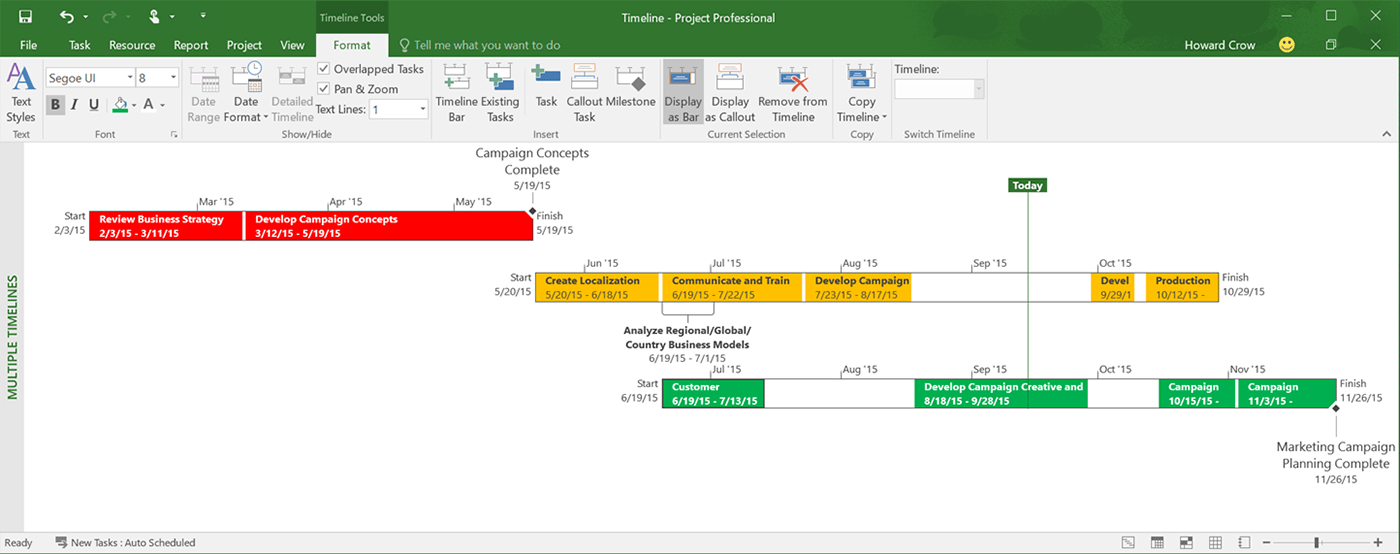
With the MS Project reference schedule, explicit planning values can be archived with a lot of detail up to a date you choose yourself. This includes, for example, validating the reduction or increase in staff, a milestone achieved or the start of the project. You can save up to eleven reference schedules.
To save the prescribed values for costs, work, duration, start and end of the project as a reference schedule, click on the order menu of the project management software „Project“ → „Define a reference schedule“, then „Reference schedule“ → „Total project“. All you have to do is confirm with „OK“. You have thus saved your target values as an MS Project reference schedule.
To compare the values of the reference planning with the projected values, search in the „Project“ menu for the command „Project statistics“, then choose „Project information“ and finally „Statistics“. You can then relate the current planning inventory to the reference planning.
Project management software: valuable reports and overviews to compare forecasts and actual progress
With MS Project’s reference planning it is possible to obtain reports or overviews to compare the prescribed and current values – this is valuable! When you registered the MS Project reference schedule, you set the values of this schedule, i.e. the validated estimates or targets in terms of start and end dates, cost, work and project duration. When these objectives are met, you can evaluate its success.
At this point, you can use the various reports, overviews and tables that the MS Project project management software makes available to see the variations between the reference planning values and the current planning figures. This makes it easier to compare estimated and actual values. To do this, you can adapt an existing table or choose a diagram or table in the predefined templates.
For example, if you plan to review the current planned costs and the costs initially planned to make up for a budget slippage as soon as possible, look in the Table „Input“ ribbon menu (combination of the Gantt chart and the standard table) for the columns „Costs“, „planned costs“ and „cost variation“. Then in View, search for „Resource Utilization“ to study some of the values of the reference planning in comparison with those of the project phase you are in.
To present the variations between the beginning and end of the project in graphical or tabular form, the „Gantt chart: monitoring“ display in combination with the „variance table“ will be the most suitable. Thanks to the graphical reports, you also have the option to export the project data in Visio or Excel. To show the changes in your planning, Microsoft Project has many useful dynamic features that continuously adapt to the progress of the project. You will find other useful tips for using MS Project here!
MS Project at the best price thanks to Licenceking
With MS Project, your field of action is therefore very wide so that your company’s projects are successful. You can avoid unpleasant surprises. In addition, the Licensing offers for MS Project software fit in perfectly with your financial architecture: 100% legal, 100% secure and always at the best price!
You might also like
 a-must-read
 Set up Google Drive as a backup medium in MS Office programs
Although Microsoft has been offering since Office 2016, with OneDrive, a platform that allows you to save your documents directly in the cloud, many users still prefer to use Google Drive for Office. This is especially true for companies since Google Drive allows work teams to quickly and easily access documents to work together on […]
 microsoft-office
 Repair or uninstall Office with the Office Removal tool
To repair or uninstall Office, the usual method of using the Control Panel > Programs and Functions > Uninstall is not necessarily sufficient. On the other hand, the Office Removal tool allows you to delete all components and registry entries quickly and securely to correct simple errors. In our Hack of week 11, we explain […]
Convert PDFs to Word Documents – with Microsoft Office 2016
In our Weekly Hack we show you how to easily convert PDF documents into editable Word documents with Microsoft Office 2016. Did you Know? A friend sent you a document in PDF format. You want to continue working with the contents of the PDF and change them. But if you copy text and graphics from […]