
Goodbye to display errors: Disable Office 2013 hardware acceleration
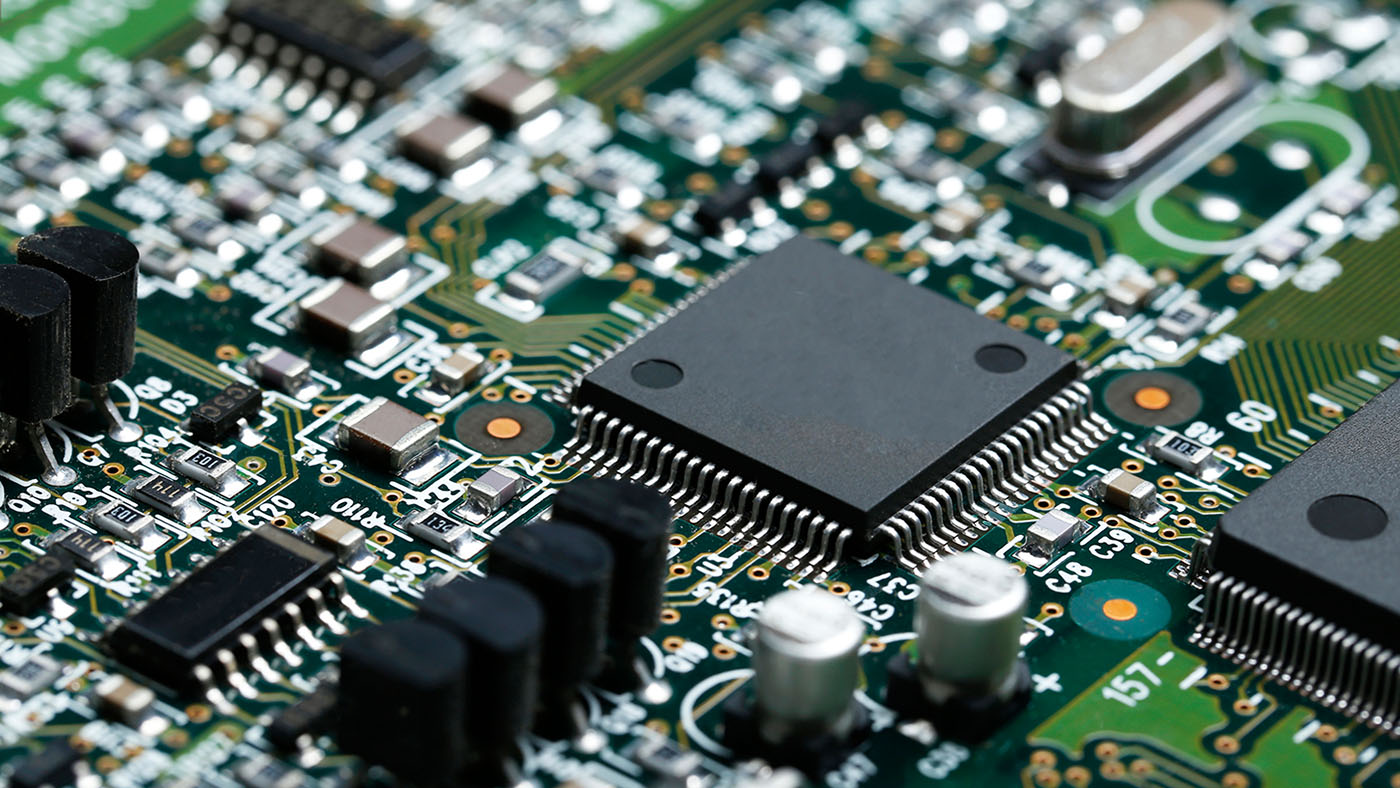
Many have already faced the problem of incompatibility of their graphics card with Office 2013, which can lead to various concerns. One of the corrective measures to be applied will then be to disable the Office 2013 hardware acceleration.
Office hardware acceleration can generate incompatibilities

Hardware acceleration is used to perform decoding on the graphics processor to unload the CPU (Central Processing Unit). This is especially useful with systems where the processor has a low performance. Unfortunately, Office 2013 and other Microsoft desktop software have incompatibilities with the graphics card, its driver or Flash Player.
Another disadvantage of hardware acceleration for high-performance graphics cards is that the GPU’s decoding cycle is higher, which means it consumes more power. In addition, the noise generated gives the impression that the decoding takes place directly on the CPU. So, in the event of a disagreement between the Office programs and the computer’s graphics card, the software’s functionalities are limited. The following symptoms may then appear:
-
The Office program becomes blurred
-
The display flashes or flickers
-
The program is largely all black or all white
-
The document text is not displayed correctly
-
The Office program closes unexpectedly
-
The performance of the Office program is limited (except at the time of opening and closing)
-
Video transmission delay in case of viewing with Microsoft Lync
The origin of this phenomenon lies in the method used by Office 2013, Office 2016 and Office 365 to display Office content and the user interface: it is faster and more efficient. Hardware acceleration is one of them. This is managed by the operating system. For hardware acceleration to work, you need compatible and up-to-date display drivers.
Disable Office hardware acceleration for better graphics rendering
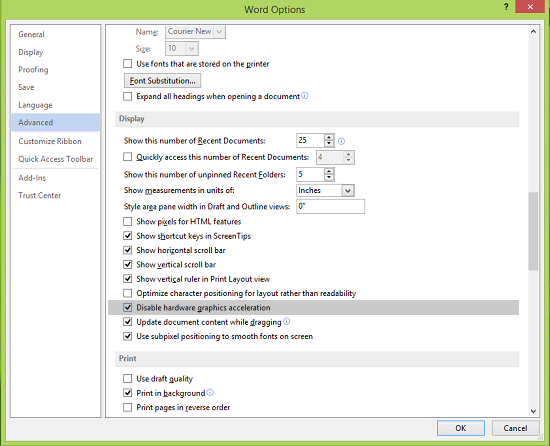
However, many display problems persist despite the update of the graphical display driver. You are then forced to disable hardware acceleration. If the manufacturer of your graphics driver publishes a correction, you can revert to this deactivation. To disable hardware acceleration under Office 2013, here’s how to do it:
-
Start any Office program
-
In the „File“ tab, click on Options
-
In the „Options“ dialog window, select „Advanced“.
-
In the list of available options, check the „Disable hardware acceleration“ box
-
Confirm by clicking on OK
**For some graphics cards, hardware acceleration is automatically disabled
**
If the Office program recognizes certain combinations of drivers and graphics cards at startup, hardware acceleration will be automatically disabled. You do not receive explicit notification of this change, if it has occurred. Check, for example, in the Options dialog box, the „Disable Graphics Hardware Acceleration“ option – this is active if it has been clicked before.
No list of driver and graphics card combinations that automatically disable hardware acceleration has been published. The list of Office programs is indeed pre-programmed, it is continuously adjusted when new problematic graphic combinations for Office are identified.
**Disadvantages of the hardware acceleration of Office 2013
**
With Office, when hardware acceleration is enabled, you can see the computer’s hard disk override the software to perform the graphics functions. It’s supposed to improve performance. However, hardware acceleration in Office can, depending on the hard disk resources, cause the problems mentioned above. Therefore, disabling hardware acceleration can lead to adverse changes in battery life, responsiveness or computer performance. Weigh the various factors carefully before disabling graphics hardware acceleration.
The same applies to the use of Internet Explorer. He traditionally works with the graphics card that is integrated into the system. For example, it can display web pages more quickly. The search engine then uses the hardware acceleration of the graphics card. Again, display problems can occur, which may lead you to disable hardware acceleration. You will then use Internet Explorer and Microsoft Edge for software acceleration. However, the latter is not as efficient as hardware acceleration, so this trick can in turn lead to slowdowns or other limitations in computer performance.
You might also like
 magazine
 MS Office 2016 Version Comparison
When you search on Microsoft Office 2016 on the Internet, you get the subscription version of Office 365 directly. The popularity of the Microsoft Office 2016 package is precisely due to the fact that these are the latest versions of Microsoft Office that can be used without an annual license. For example, it is easy […]
 microsoft-office
 OpenOffice vs. Microsoft Office: Direct confrontation
Although most users naturally use Microsoft Office, there are free alternatives on the market – for example, the OpenOffice suite. Is it really profitable to spend money on the corresponding Microsoft product, or is the free alternative enough? We have compared here the two products: MS Office and OpenOffice. Today, when you buy a PC […]
 magazine
 Is it possible to buy Microsoft Outlook under a single license?
When you start looking for the most popular software for email management and would like to buy Microsoft Outlook, you will find various offers on the Internet. There are also options where Microsoft Outllook is available as an individual license. In our blog article of week 15, we explain why it is still better to […]